Using GitHub Actions
Overview
This guide shows you how to integrate Microcks into your Github Actions workflows. Microcks provides 2 GitHub Actions for interacting with a Microcks instance from your workflows:
-
The Microcks Import GitHub Action allows you to import Artifacts in a Microcks instance. If the import succeeds, it is pursued; if not, it fails.
-
The Microcks Test GitHub Action allows you to launch a Microcks test on a deployed API endpoint. If the test succeeds (i.e., the API endpoint is conformant with the API contract in Microcks), the workflow is pursued; if not, it fails.
Those 2 actions are basically a wrapper around the Microcks CLI and are using Service Account. They provide the same configuration capabilities. Especially, they're sharing the same mandatory configuration parameters that are:
microcksURLfor the Microcks API endpoint,keycloakClientIdfor the Keycloak Realm Service Account ClientId,keycloakClientSecretfor the Keycloak Realm Service Account ClientSecret.
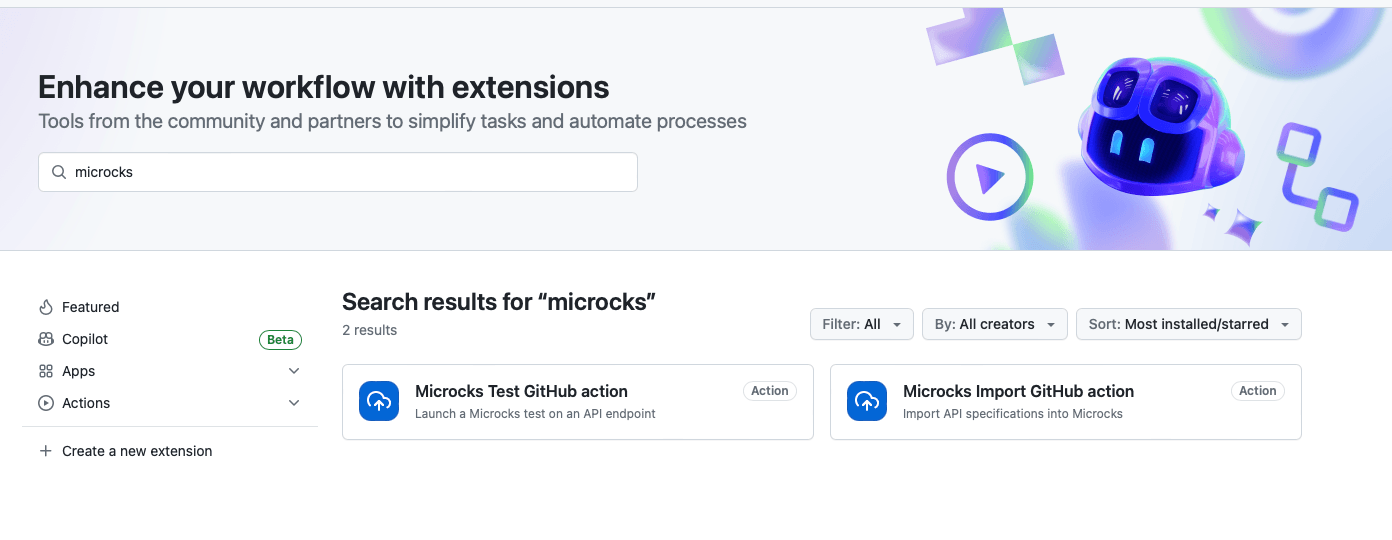
1. Find them in the Marketplace
Obviously, we can find this action with GitHub Actions Marketplace 😉
You may add one of the Actions to your Workflow directly from the GitHub UI.
2. Import GitHub Action
The import action, based on the CLI command, has just one argument that specifies a comma-separated list of file paths:
<specificationFile1[:primary],specificationFile2[:primary]>: The file paths with an optional flag telling if it should be imported asprimaryor not. See Multi-artifacts explanations documentation. The default istrue, so it is considered as primary.
Step 1 - Configure the Action
Here's an example below:
name: my-workflow
on: [push]
jobs:
  my-job:
    runs-on: ubuntu-latest
    environment: Development
    steps:
      - uses: microcks/import-github-action@v1
        with:
          specificationFiles: 'samples/weather-forecast-openapi.yml:true,samples/weather-forecast-postman.json:false'
          microcksURL: 'https://microcks.apps.acme.com/api/'
          keycloakClientId:  ${{ secrets.MICROCKS_SERVICE_ACCOUNT }}
          keycloakClientSecret:  ${{ secrets.MICROCKS_SERVICE_ACCOUNT_CREDENTIALS }}
Step 2 - Configure the Secrets
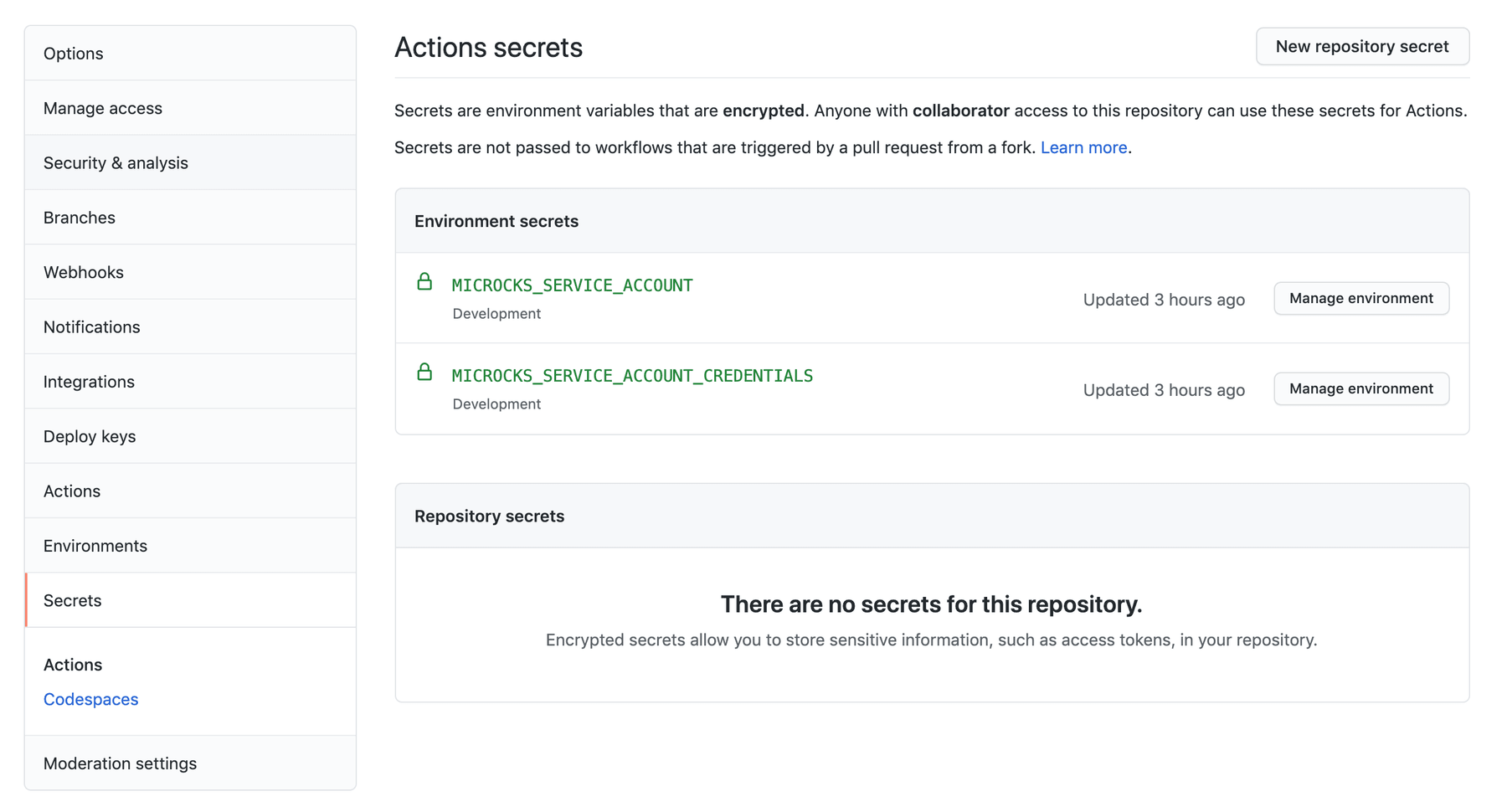
It's best practice to use GitHub Secrets (general or tied to Environment like in the example) to hold the Keycloak credentials (client ID and Secret). See below the Secrets configuration we've used for the example:
3. Test GitHub Action
The test action, based on the CLI command, needs 3 arguments:
<apiName:apiVersion>: Service to test reference. Example:'Beer Catalog API:0.9'<testEndpoint>: URL where the implementation is deployed to test<runner>: Test strategy (one of:HTTP,SOAP,SOAP_UI,POSTMAN,OPEN_API_SCHEMA,ASYNC_API_SCHEMA)
And some optional ones that are the same as the CLI that you may find in the Microcks Test GitHub Action repository.
Step 1 - Configure the Action
Here's an example below:
name: my-workflow
on: [push]
jobs:
  my-job:
    runs-on: ubuntu-latest
    environment: Development
    steps:
      - uses: microcks/test-github-action@v1
        with:
          apiNameAndVersion: 'API Pastry - 2.0:2.0.0'
          testEndpoint: 'http://my-api-pastry.apps.cluster.example.com'
          runner: OPEN_API_SCHEMA
          microcksURL: 'https://microcks.apps.acme.com/api/'
          keycloakClientId:  ${{ secrets.MICROCKS_SERVICE_ACCOUNT }}
          keycloakClientSecret:  ${{ secrets.MICROCKS_SERVICE_ACCOUNT_CREDENTIALS }}
          waitFor: '10sec'
Step 2 - Configure the Secrets
It's best practice to use GitHub Secrets (general or tied to Environment like in the example) to hold the Keycloak credentials (client ID and Secret). See below the Secrets configuration we've used for the example:
Wrap-up
You have learned how to get and use the Microcks GitHub Actions. The GitHub actions reuse the Microcks CLI and the Service Account and so it's definitely worth the read 😉
The most up-to-date information and reference documentation can be found in the repository README.