Connecting to Postman Workspaces
Overview
Postman Workspaces are a common and effective way of organizing your team's API work. Workspaces allow you to collaborate while designing your API and share your API artifacts like Postman Collections.
In this guide, you'll learn how to directly connect Microcks to your Postman Collection living in a Workspace so that changes in Postman may be automatically propagated to Microcks.
1. Obtain an API Key
In order to connect to your Postman Workspace, you'll need an API Access Key so that Microcks will be able to authenticate while fetching your Collection. In order to do that, you'll need to generate an API Key from Postman Workspace as illustrated below:
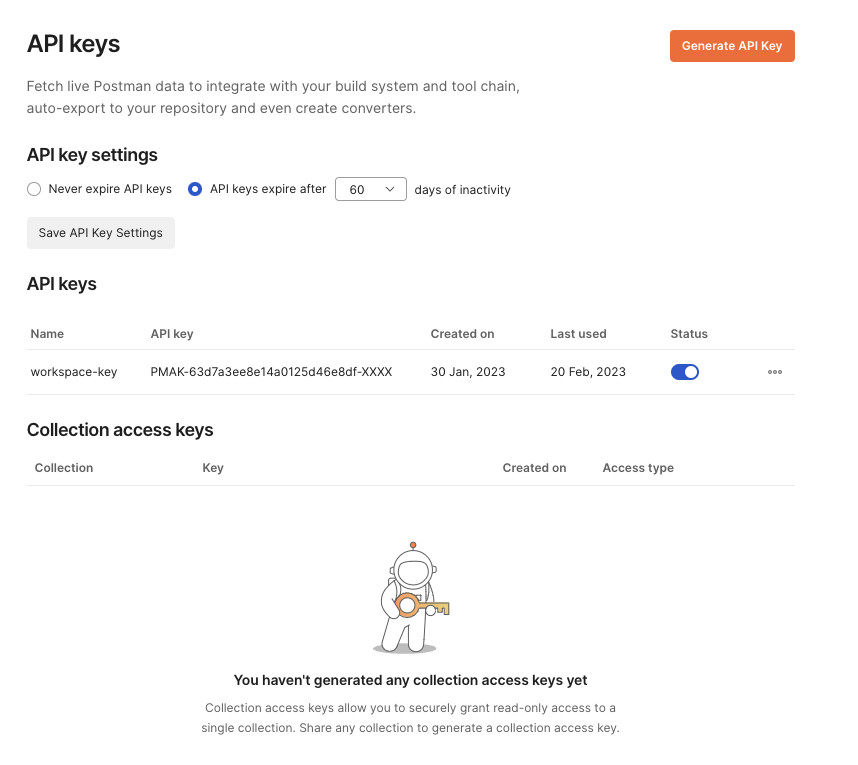
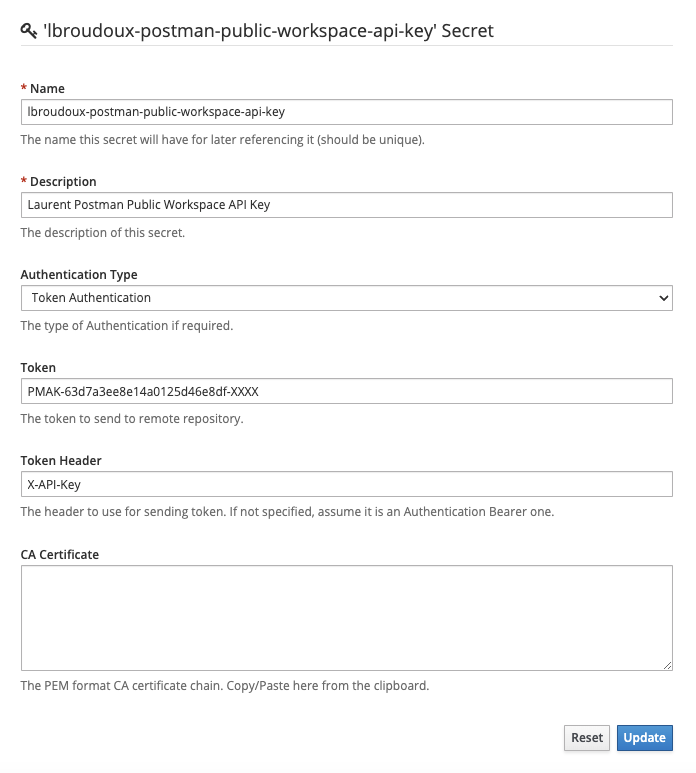
This API Key must then be saved as an authentication Secret in Microcks so that your importer can reference it and supply it to the Postman API using the X-API-Key header.
As an administrator, create a new Secret using this template and replace the token with your own value:
2. Share your API
Now you need to retrieve the Collection API link. For that, you have to go through the Share button and select the Via API thumbnail as illustrated in the picture below:
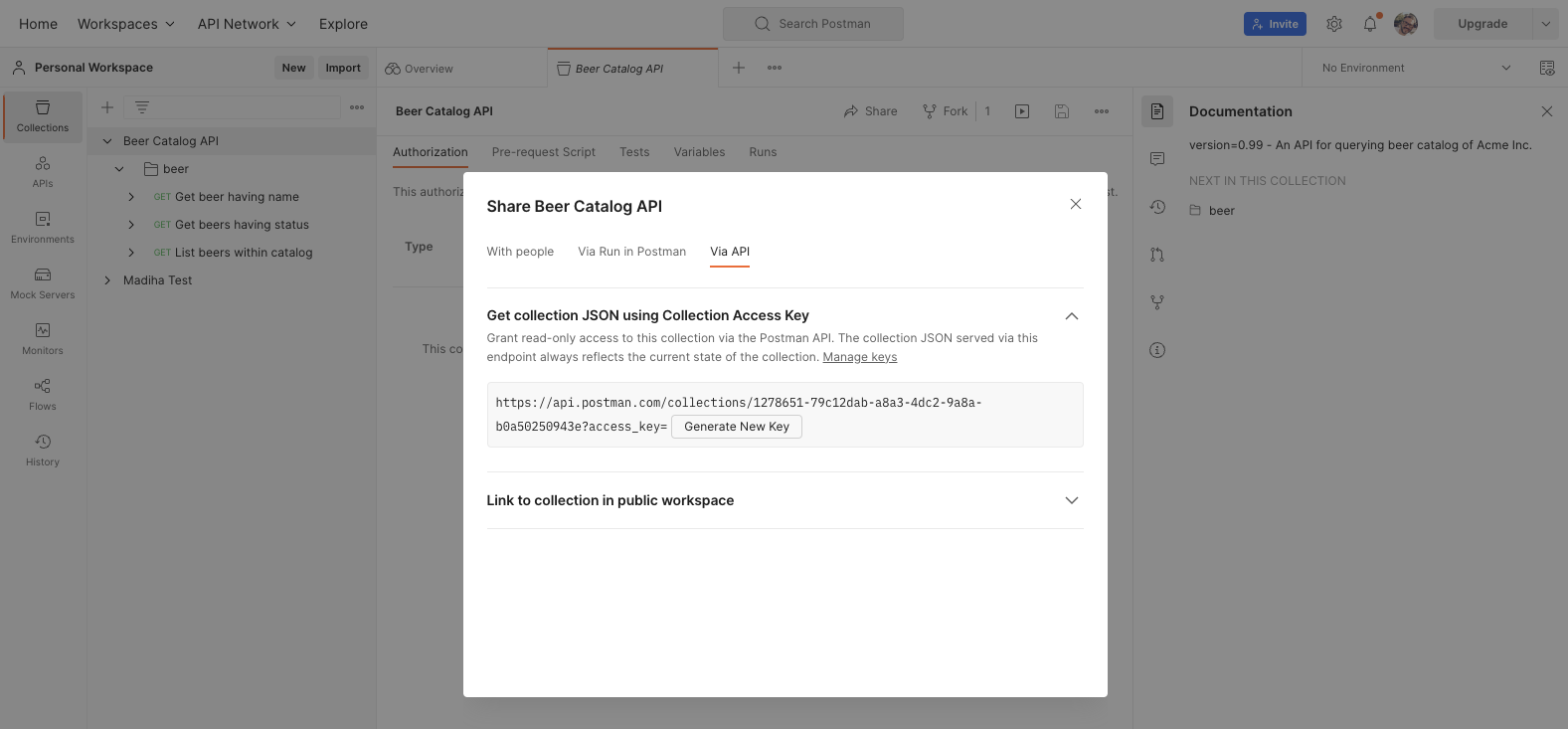
🗒️ You can see that it's also possible to generate a new API key from this step if you have skipped step 1 😉
Copy this URL, which is unique and represents access to your Collection.
3. Create an Importer
Finally, you can use this URL (ending just before the ?) and use it directly as an Importer URL when creating a Scheduled Importer.
Wrap-up
Congrats 🎉 You now know how to connect Microcks to your Postman Workspace and get direct access to the Postman Collection shared with your team!